Tutorial: How to use this sites content
What is "SAS"
Otherwise known as Save Application System, SAS apps/folders are single directory folders that play nice with the memory card filesystem as subdirectories can easily break it.
SAS Applications include:
-
Memory Card icons for visual indicator as to apps purpose and critical status to your boot environment.
-
title.cfgplain text file for other apps such as OSDMenu, OPL, OSD-XMB and PSBBN DEP to list apps to run without user intervention.title.cfg exampletitle=[APP] NHDDL # used by newer OPL and first "page" of info Title=NHDDL # used by older OPL and second "page" of info boot=nhddl.elf # relative path to ELF Version=1.2.0 # version of app Release=November 13th, 2025 # date app was updated Developer=pcm720 # who wrote the app Genre=Homebrew # category of "game", in this case homebrew Description=A Neutrino launcher # description of app. If too long OPL will crash Source=github.com/pcm720/nhddl # where to find more info regarding app Notes=SAS Compliant # Of course its SAS compliant! CfgVersion=8 # Info for OPL $ConfigSource=1 # Info for OPL -
Folder prefix (if app supported) such as
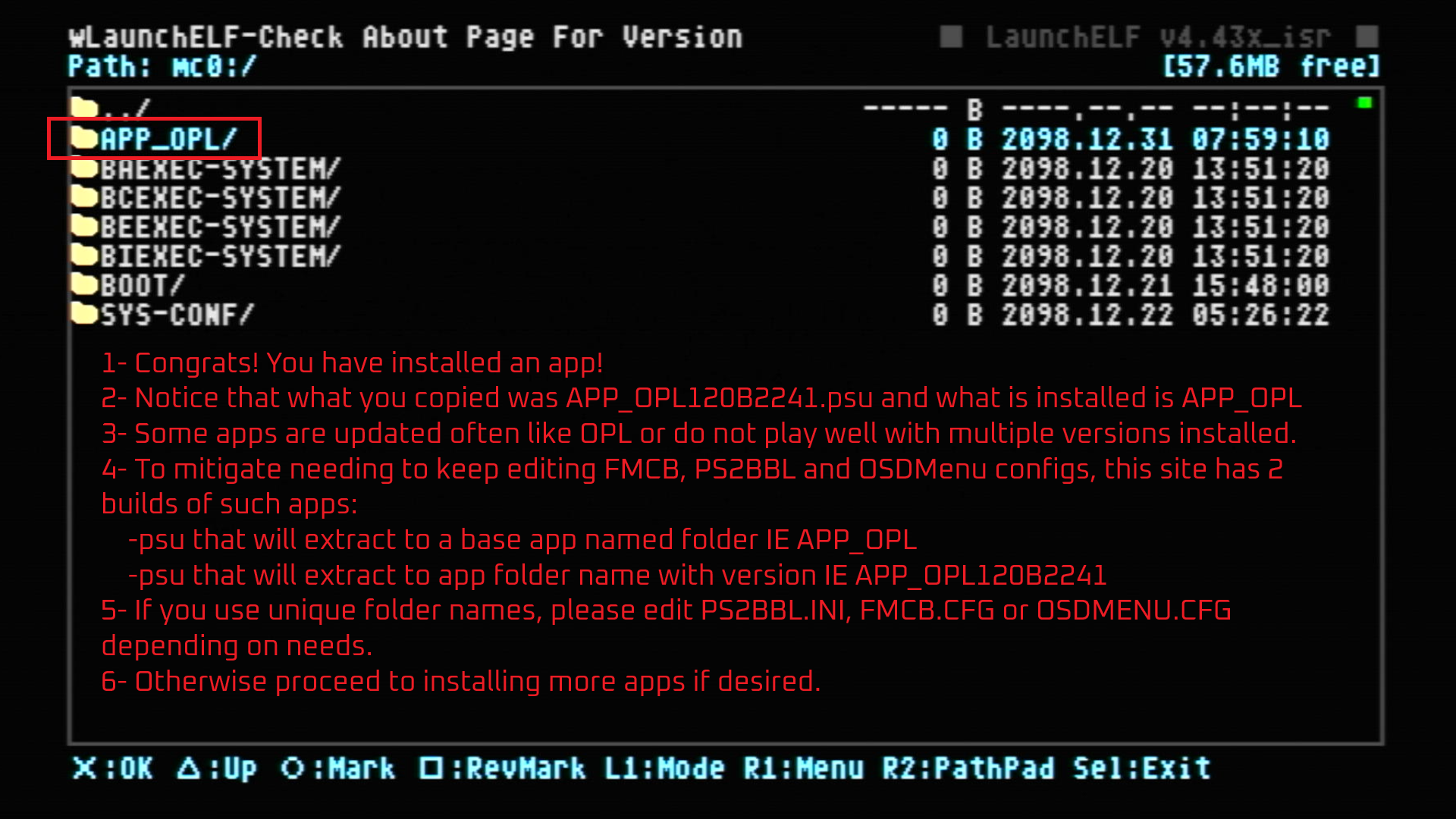
APP_OPL(Application) orDST_ROMVERCHK(Diagnostic Service Tool) for organization. Example full path:mc0:/APP_OPL/OPL.ELFAPP_ApplicationSYS_System (caution when deleting)DST_Diagnostic service toolDBG_DebugRTE_Run time environment (App that relies on other scripts usually like Athena or Enceladus.)EMU_EmulatorPS1_Playstation 1GME_Game
-
Packaged via a container called a
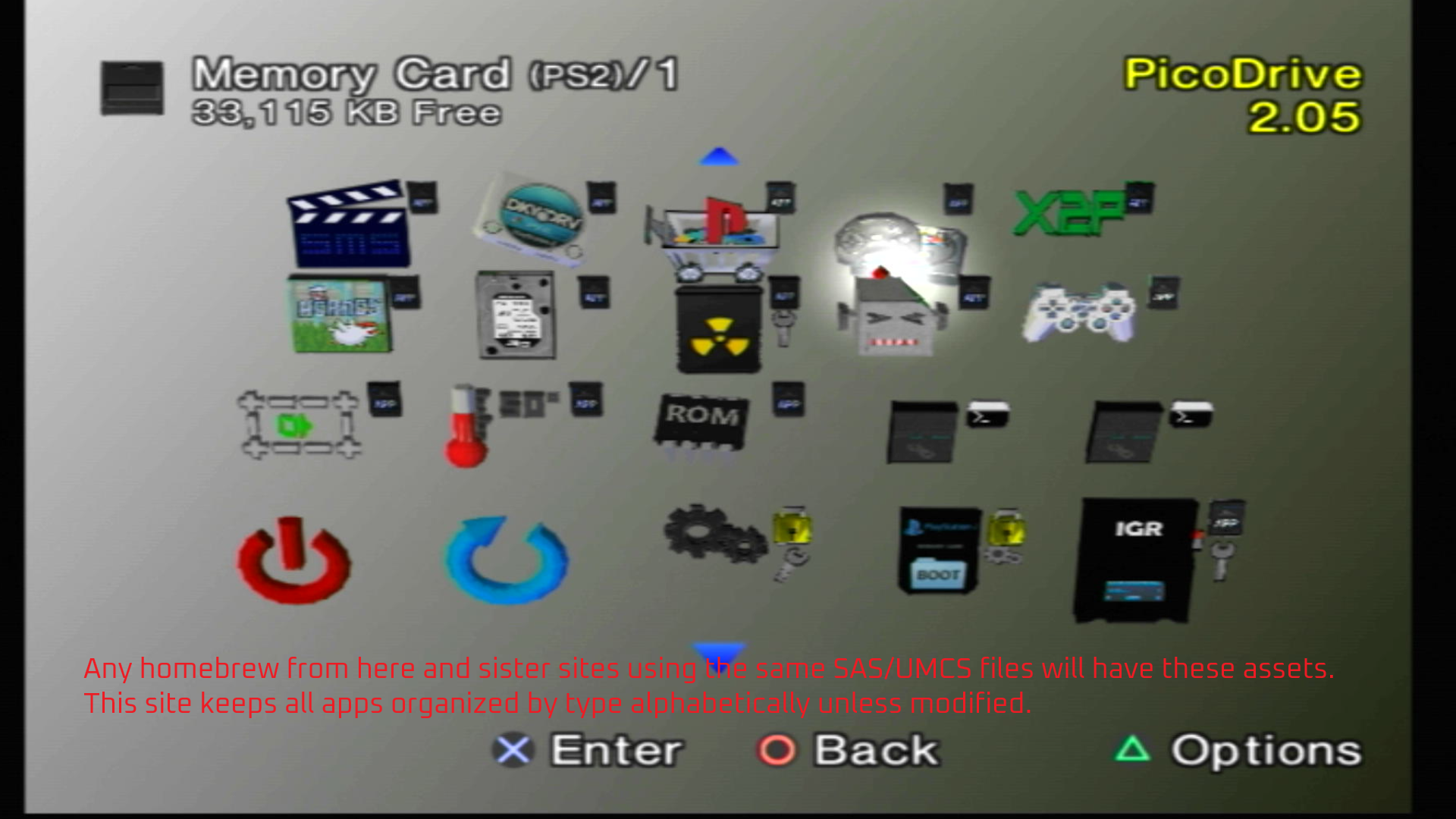
psu. This is used to transfer game saves, but adopted for SAS so that all assets are contained. Even date/time is preserved so that Apps are always in order alphabetically by type in the MC Browser!
How to install SAS apps
Step 1: Open wLaunchELF ISR exFAT
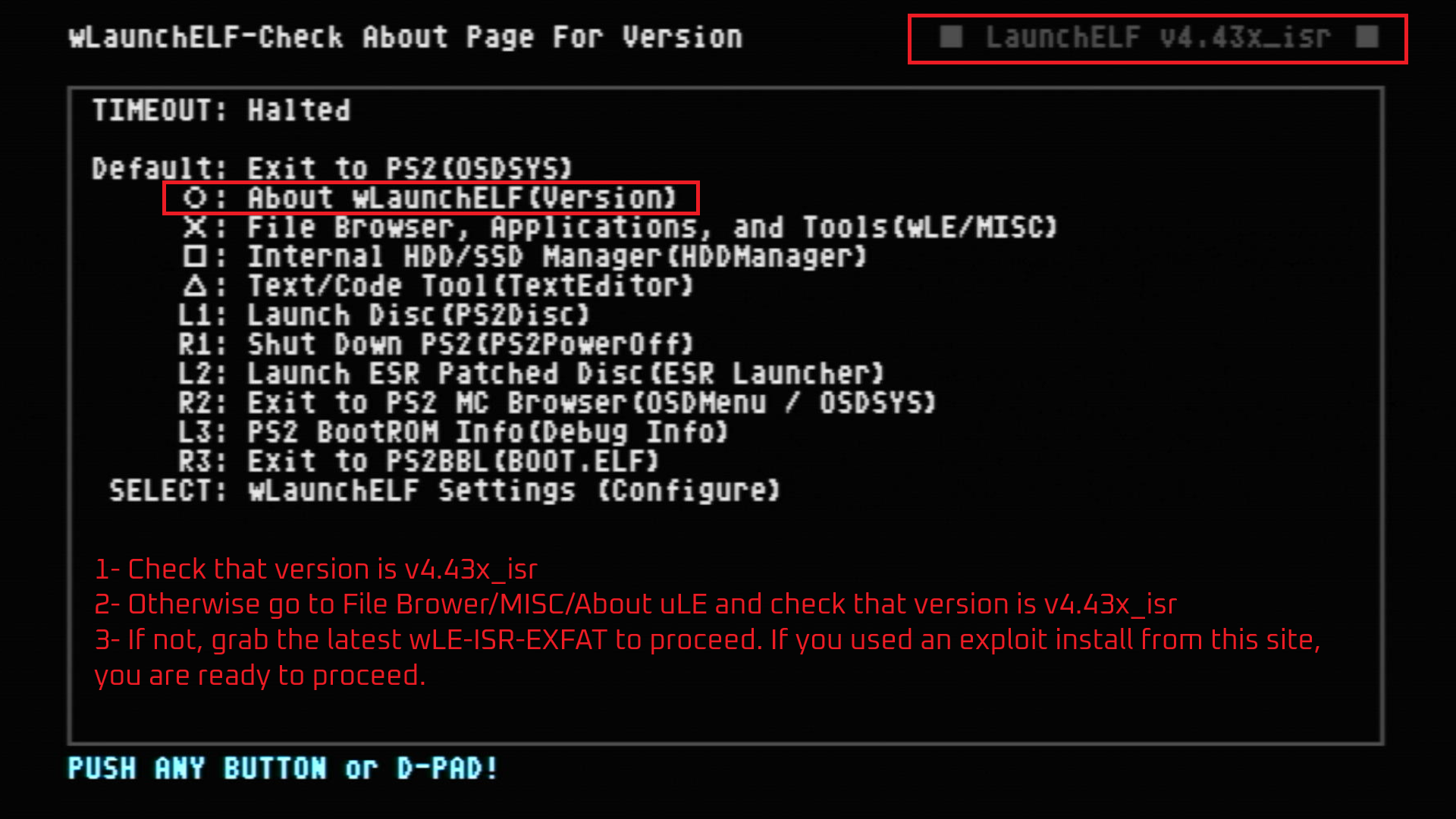
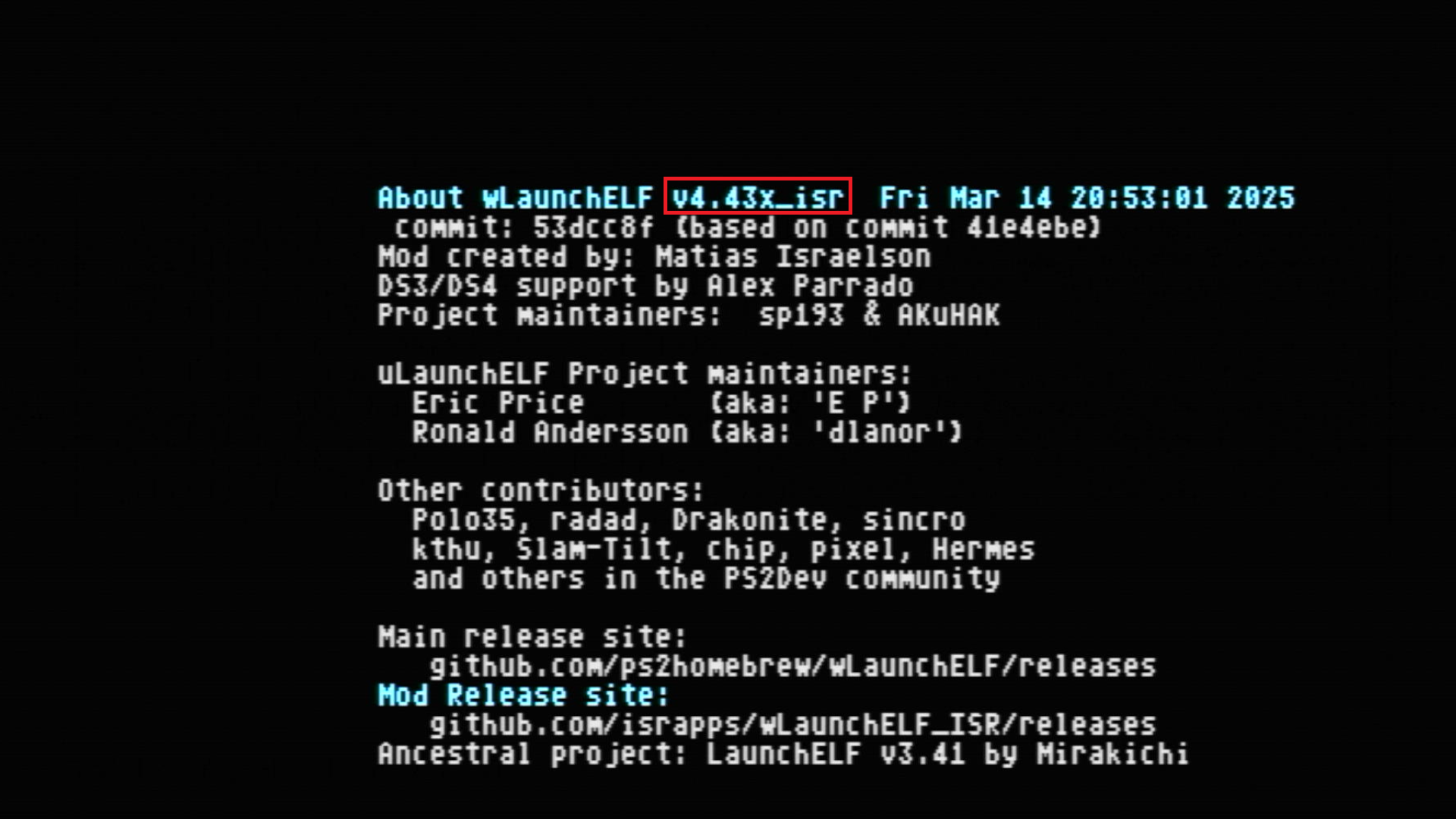
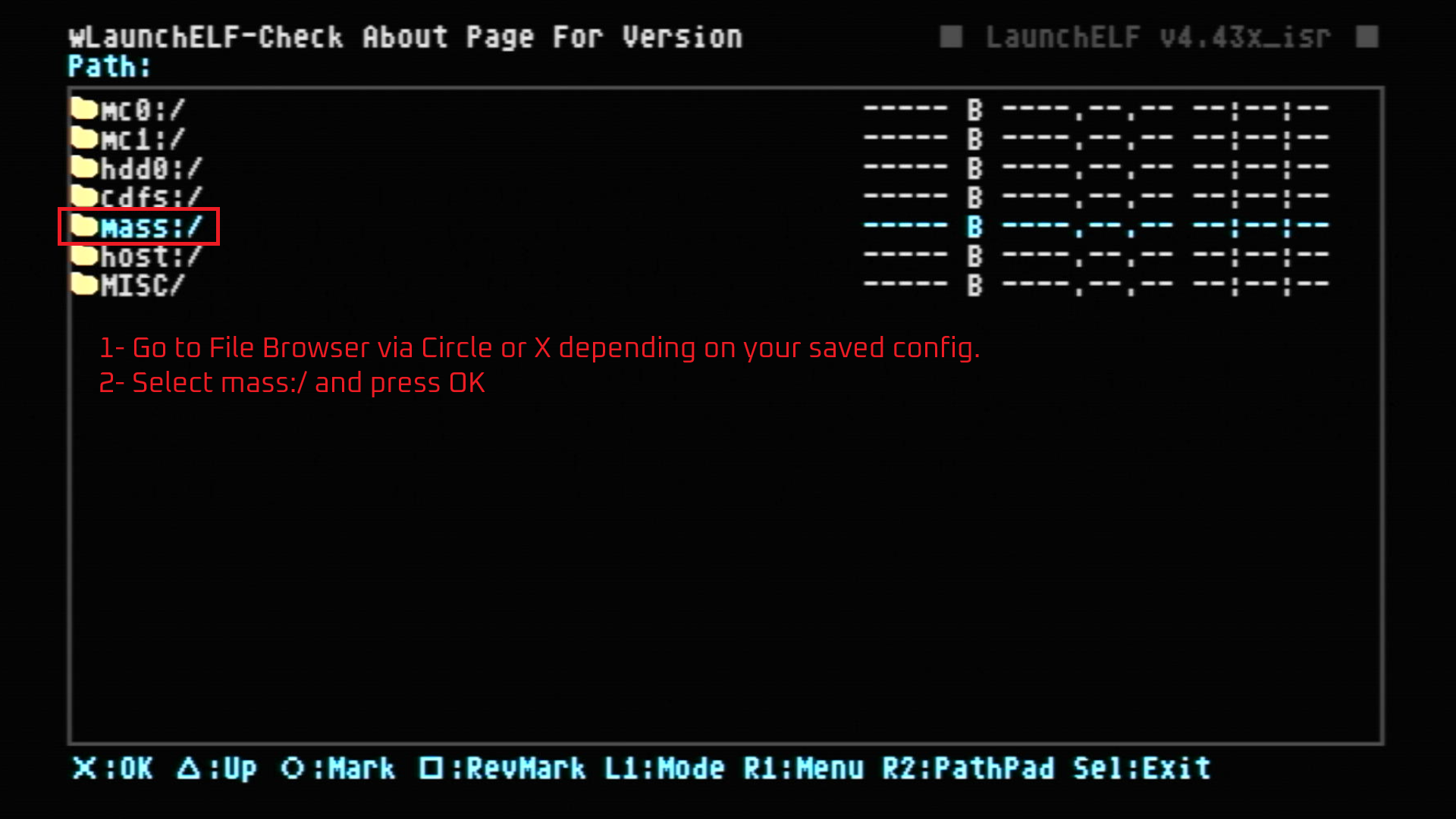
Step 2: Navigate to USB and find the APP.psu
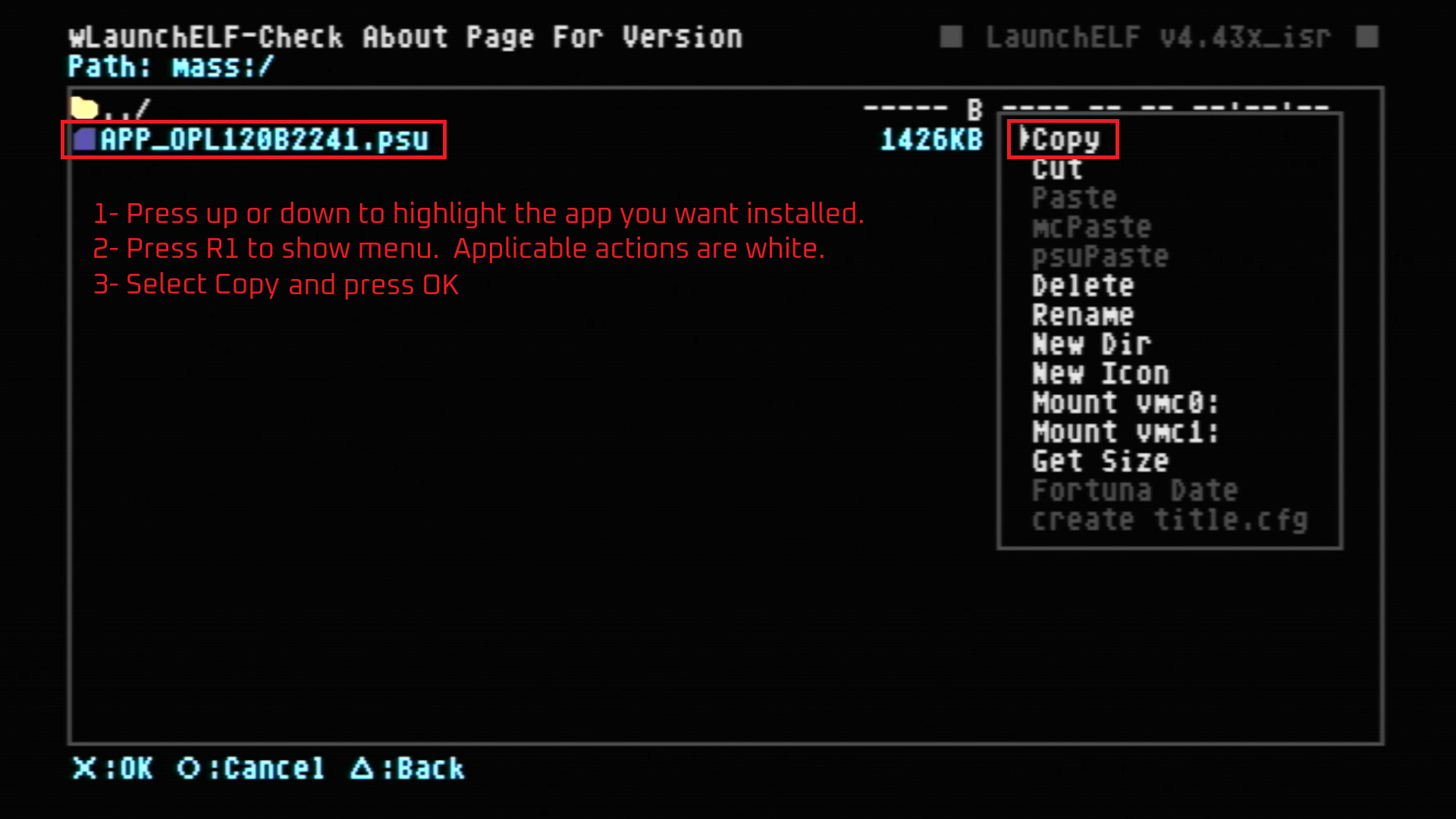
Step 3: Installing the APP.psu
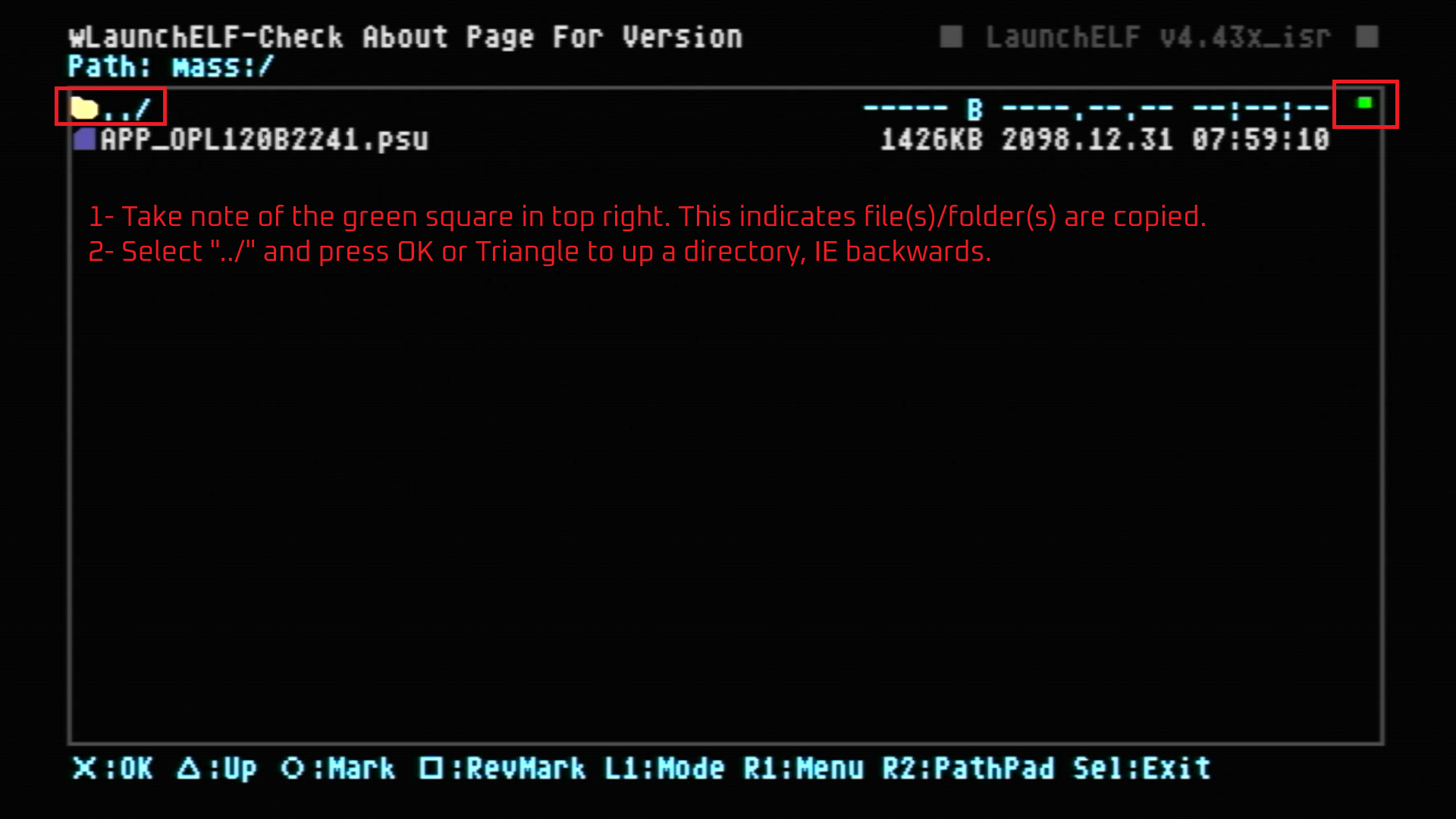
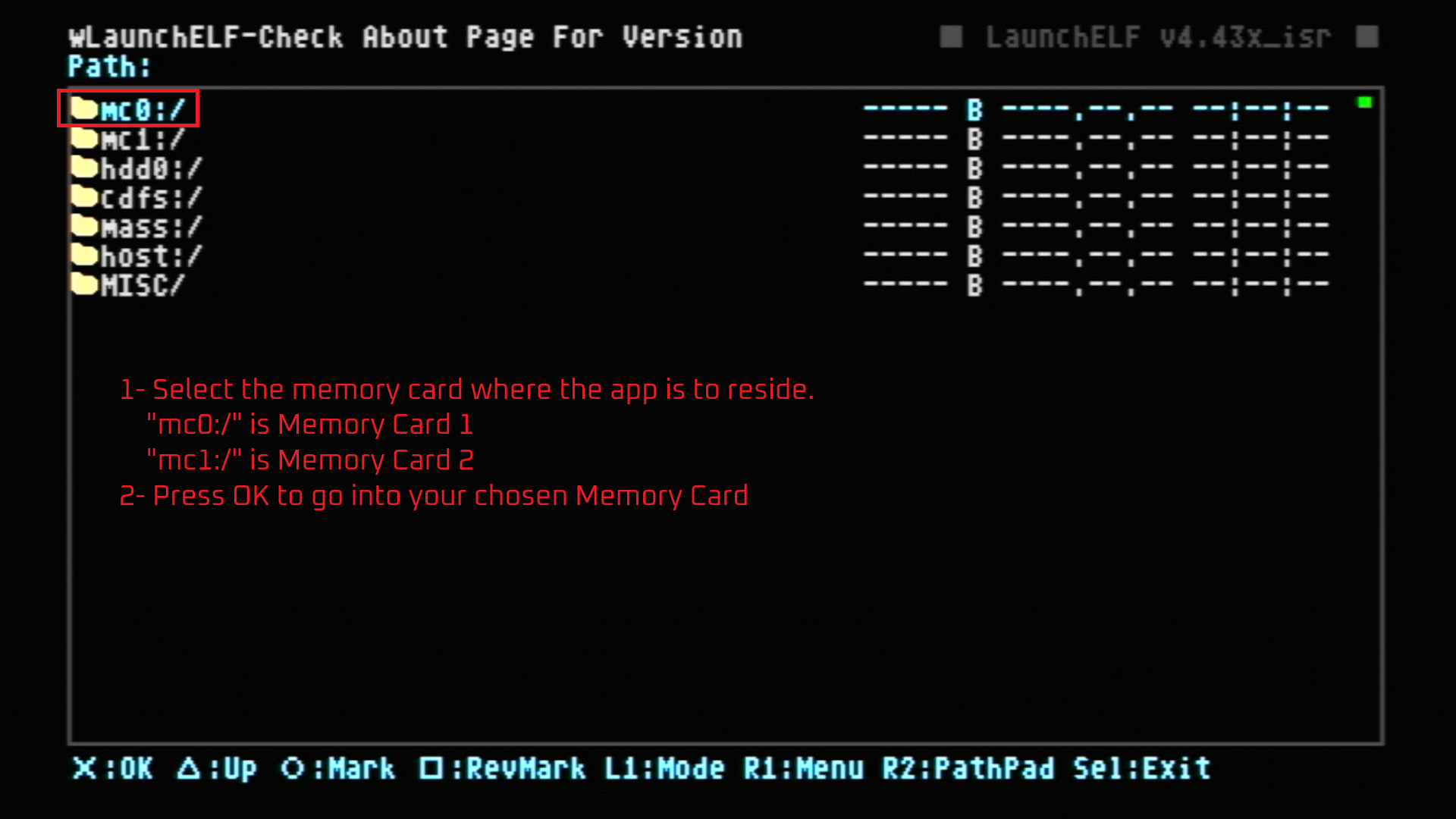
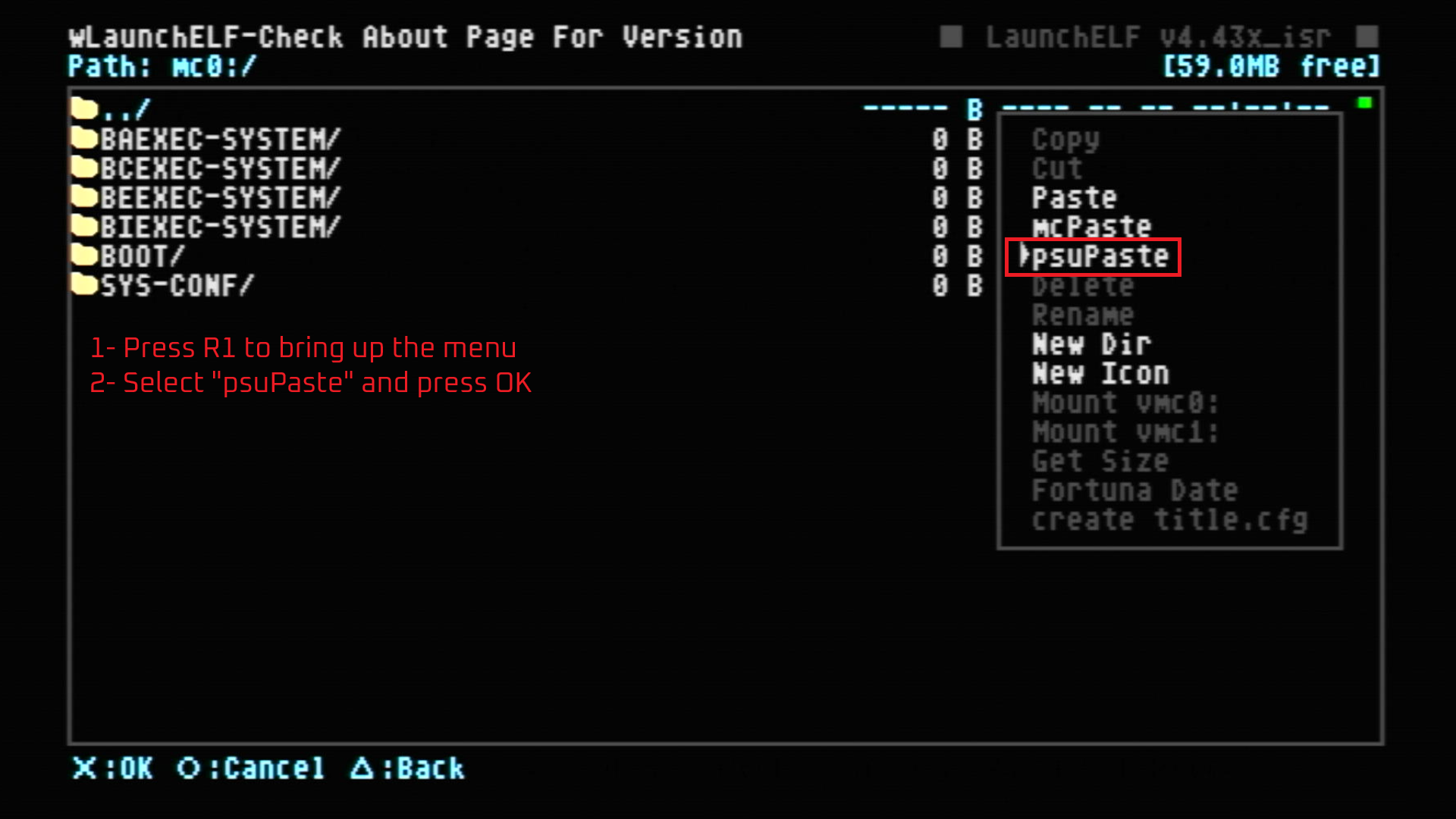
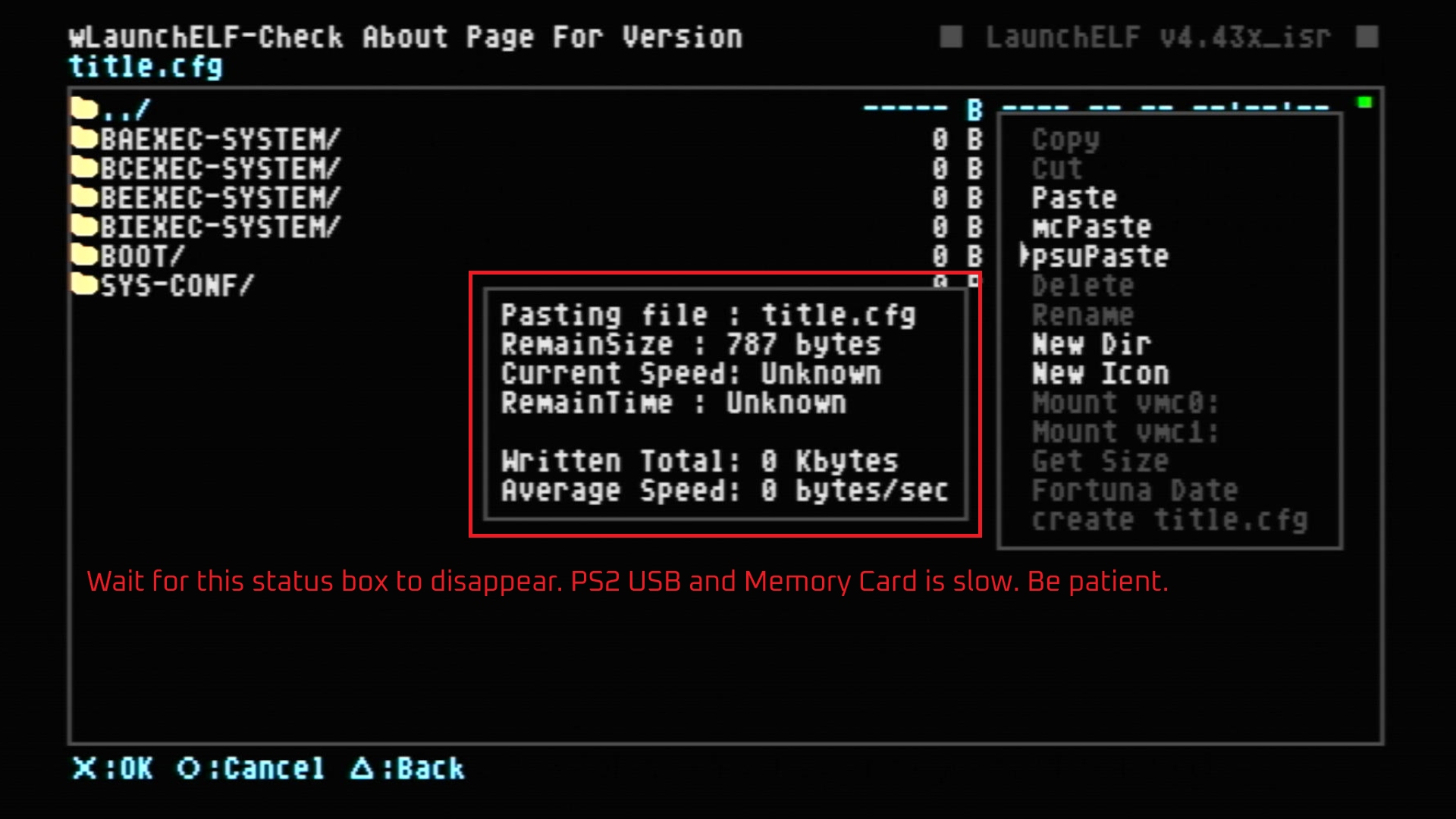
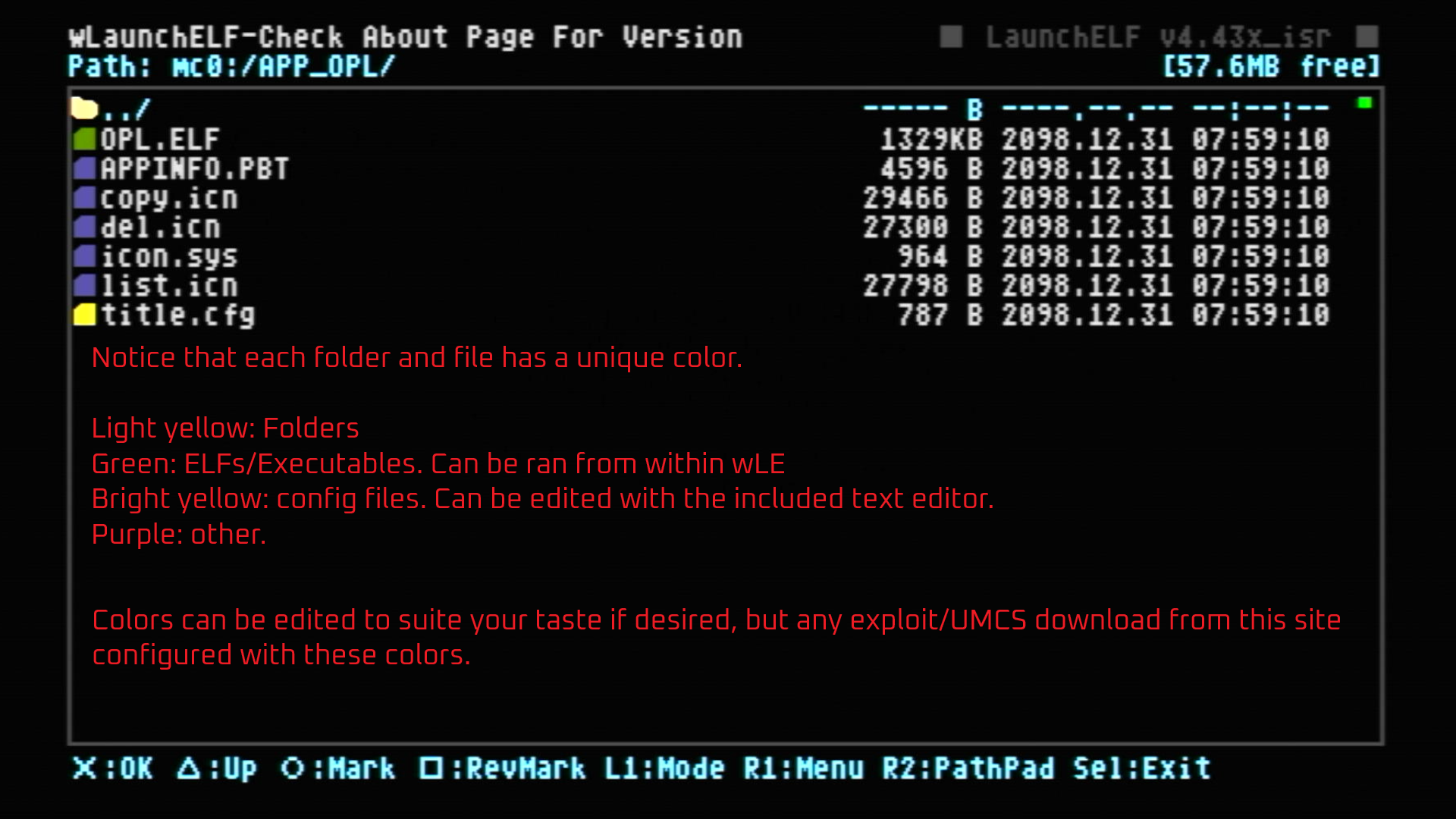
Step 4: Verifying and understanding wLE icon colors
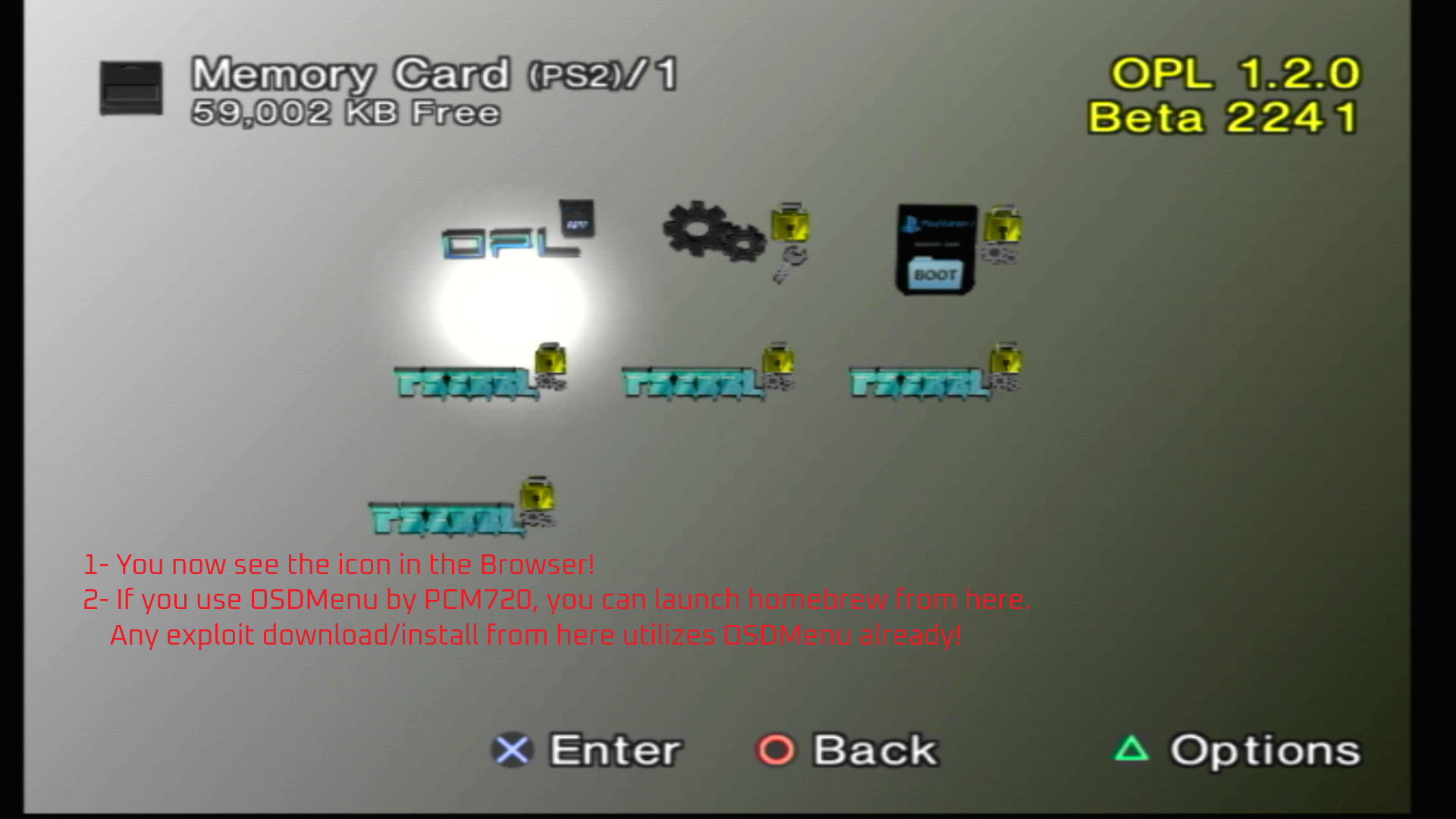
BONUS: Launching from Browser! (with OSDMenu)
Badges: indicators next to downloads
-


App follows SAS/UMCS guidelines and will be PSU Pasted to root of MemCard
-


App follows SAS/UMCS guidelines and must be "Unzipped", then PSU Pasted to root of MemCard
-




App follows SAS/UMCS guidelines and must be "Un7zipped", then PSU Pasted to root of MemCard
-


App follows SAS/UMCS guidelines and must be "UnRARed", then PSU Pasted to root of MemCard
-


App follows SAS/UMCS guidelines and must be downloaded from source, then PSU Pasted to root of MemCard
-




App DOES NOT follow SAS/UMCS guidelines!
Badge still shows type of download file.
-
APP lists and launches SAS compatible homebrew. Thanks to each dev that adds this ability!